
vhf software upgrade planning: versions, timing and CAD integration
Plan a vhf software upgrade around your machine model, installed software and CAD workflow. Record the current dentalcam and dentalcnc versions before requesting a machine-specific upgrade review. A software launch date alone does not establish the configuration for an individual mill.
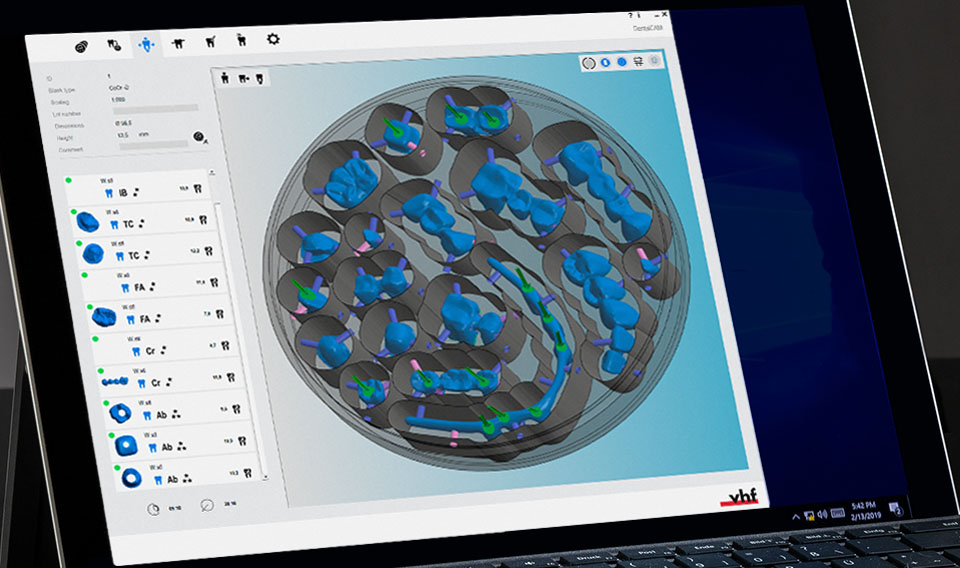
Check the announced rollout against your machine
vhf announced digital solutions for new machines starting June 29, 2026, with upgrades for existing machines beginning in the fourth quarter of 2026. This is the manufacturer's rollout announcement, not confirmation that every installed machine is eligible on the same date.
For a new-machine order, ask which dentalcam and dentalcnc versions are included and what setup is required for myvhf. For an existing machine, provide its model, serial number, delivery date and installed versions. Confirm the supported upgrade path and availability for that configuration before scheduling production downtime.
Choose the CAD-to-CAM path you need
vhf's current US digital solutions page distinguishes three paths for dentalcam 9. Check which path applies to your CAD software and mill.
| Path | What changes in the handoff | Published scope |
|---|---|---|
| Open STL import | Export an STL file from CAD and import it into dentalcam 9. | vhf lists common CAD systems. |
| STL one-click transfer | Send the STL file directly to dentalcam 9. | vhf names 3Shape, Medit, Shining 3D, Circle One, Dental Twin and iTero. |
| Full CAD/CAM integration | Work in CAD while dentalcam 9 runs the calculations in the background. | vhf lists exocad with E4, N4+ and Z4. |
The full-integration list does not establish that the same path is available on every vhf model. Confirm the required software versions and configuration for your machine. Open STL transfer and full integration are separate choices.
Prepare a useful upgrade request
Include a screenshot of the installed software versions and describe one job you need to run after the change. List the CAD software, restoration type, material, tool set and current transfer method. This gives the review a concrete workflow to check.
Ask how existing settings and production files should be backed up, who will perform the installation, and how the first test job will be checked. Agree on a downtime window and a support contact before changing the production computer. Use the documented procedure for your confirmed configuration.
For a multi-machine lab, identify each mill separately. Approval for one model and software combination should not be treated as approval for the rest of the fleet.
Confirm the configuration before you commit
Keep the machine model, installed versions, intended integration path and proposed installation date together in your request. Ask Dentcore to review that specific setup before making an upgrade decision.
Ask Dentcore about your vhf software configuration
Related Dentcore guides
Sources reviewed September 21, 2026: vhf US digital solutions and the manufacturer's digital solutions rollout announcement.
Important note: Software timing, machine delivery scope, upgrade eligibility, and available features can change. This article is Dentcore's buyer-focused summary and planning guide. Always confirm current vhf documentation, machine model details, and Dentcore's final quote before purchasing or changing a production workflow.